
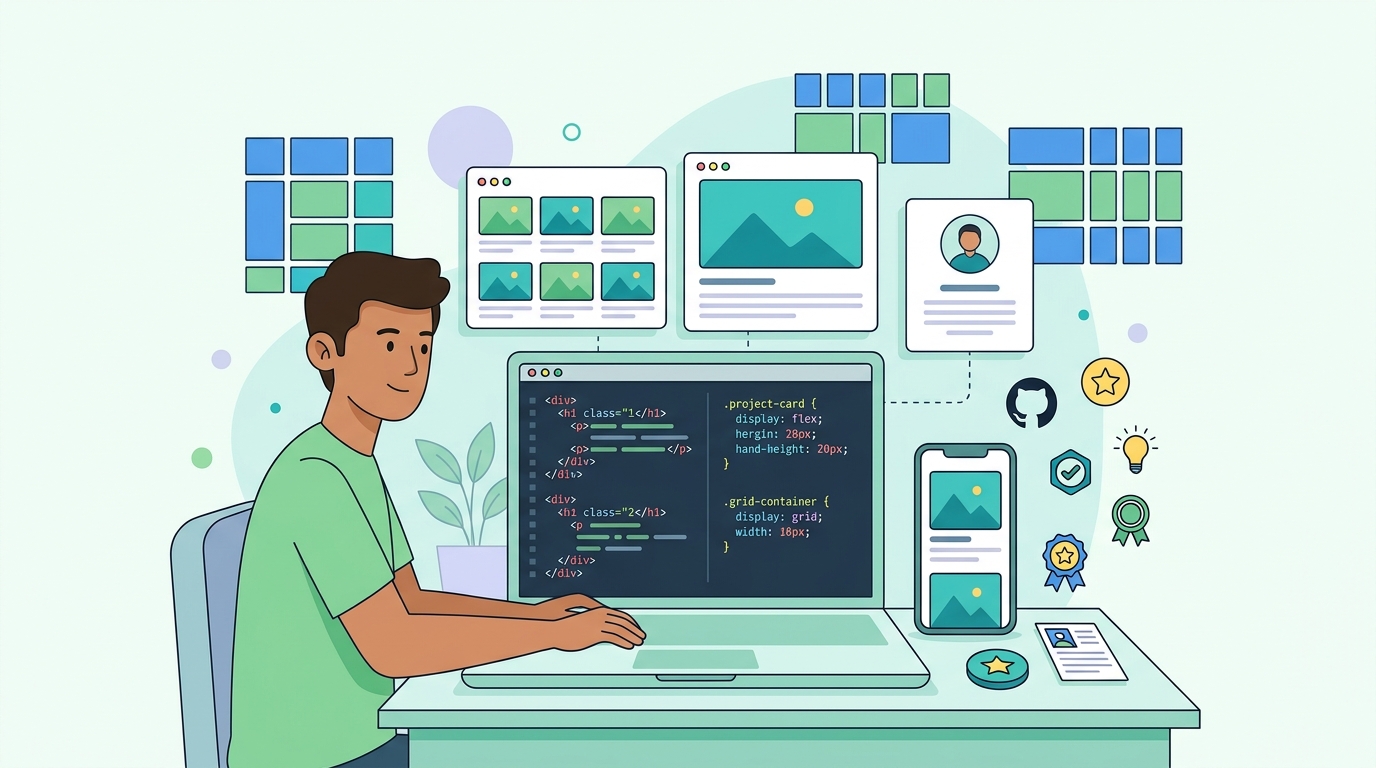
HTML CSS projects 2026 are the best way to move from “I watched tutorials” to “I can actually build websites.”
If you have recently learned HTML and CSS, the next step is not another 10-hour video. The next step is building. Projects teach you layout, spacing, colors, typography, responsiveness, file structure, and real problem-solving. These are the skills that make you confident as a beginner web developer.
Many students know HTML tags and CSS properties, but they still get stuck when someone asks them to create a complete page from scratch. That happens because learning concepts and applying concepts are different things. A project forces you to think like a developer: where should the navbar go, how should cards align, why is the mobile view breaking, and how do I make the page look clean?
In this guide, you’ll get 8 practical HTML CSS projects 2026 that you can build as a beginner and add to your portfolio. These projects are simple enough to start, but useful enough to improve your real frontend skills.
Why HTML CSS Projects Matter More Than Tutorials
Tutorials are useful in the beginning, but tutorials alone will not make you job-ready. When you watch a tutorial, the instructor already knows the layout, the colors, the spacing, and the solution. You are only following the path.
Projects are different.
When you build a project yourself, you make decisions. You decide the structure. You decide the design. You fix the alignment. You test the page on mobile. You search errors. This is where real learning happens.
For example, you may know what Flexbox is, but when you build a pricing card section, you understand why display: flex, gap, justify-content, and align-items matter. You may know media queries, but when your website breaks on mobile, you understand why responsive design is not optional.
If your goal is to become a frontend or full stack developer, you should also follow a proper learning path. You can read our complete guide on Full Stack Web Development Roadmap 2026 after finishing these projects.
What You Should Know Before Starting These Projects
You do not need React, Next.js, Bootstrap, Tailwind, or JavaScript to start these projects. These are pure HTML and CSS projects for beginners.
Before starting, you should know:
- Basic HTML structure
- Headings, paragraphs, images, links, lists
- Forms and buttons
- Semantic tags like header, nav, main, section, article, footer
- CSS selectors
- Box model
- Margin and padding
- Flexbox
- CSS Grid basics
- Media queries
- Basic hover effects
Don’t wait until you “know everything.” That day never comes. Start with what you know, build a small version, then improve it.
A good beginner rule is simple:
Learn one concept → build one small section → fix mistakes → improve designThis method is much better than watching 20 tutorials and building nothing.
Project 1: Personal Portfolio Website
A personal portfolio website is the first project every beginner web developer should build. It works like your online resume. If someone wants to know who you are, what skills you have, and what projects you’ve built, your portfolio should answer everything clearly.
Your portfolio website should include:
- Hero section
- About section
- Skills section
- Projects section
- Resume button
- Contact section
- Footer
A basic page structure can look like this:
<header>
  <nav>
    <h2>My Portfolio</h2>
    <ul>
      <li><a href="#about">About</a></li>
      <li><a href="#projects">Projects</a></li>
      <li><a href="#contact">Contact</a></li>
    </ul>
  </nav>
</header>

<main>
  <section class="hero">
    <h1>Hi, I am Rahul</h1>
    <p>Frontend Developer in progress</p>
    <a href="#projects">View Projects</a>
  </section>
</main>
For CSS, focus on clean spacing, readable fonts, and a simple color palette. Beginners often add too many colors, shadows, and animations. Keep it simple.
Skills you’ll learn from this project:
| Skill | Why It Matters |
|---|---|
| Navbar design | Used in almost every website |
| Hero section | Helps create strong first impression |
| Flexbox | Useful for layout alignment |
| Cards | Used for project showcase |
| Responsive design | Makes site mobile-friendly |
Bonus idea: Add a dark mode style using CSS variables. You don’t need JavaScript for the first version. Just create a dark theme section or alternate color design.
This is one of the most important HTML CSS projects 2026 because you can keep improving it as you learn more skills.
Project 2: Product Landing Page
A product landing page is a single-page website created to promote a product, tool, app, course, or service. This project is very useful because landing pages are common in real client work and marketing websites.
You can create a landing page for:
- AI writing tool
- Online course
- Headphone brand
- Fitness app
- Coding bootcamp
- Mobile app
- SaaS product
Your landing page should include:
- Hero section
- Product image or illustration
- Features section
- Benefits section
- Pricing cards
- Testimonials
- Call-to-action button
- FAQ section
- Footer
Example section:
<section class="features">
  <div class="feature-card">
    <h3>Fast Setup</h3>
    <p>Start using the product in minutes with a clean dashboard.</p>
  </div>

  <div class="feature-card">
    <h3>Beginner Friendly</h3>
    <p>Simple interface designed for students and new users.</p>
  </div>
</section>
CSS idea:
.features {
  display: grid;
  grid-template-columns: repeat(3, 1fr);
  gap: 24px;
}

.feature-card {
  padding: 24px;
  border-radius: 12px;
  border: 1px solid #e5e7eb;
}
For mobile responsiveness:
@media (max-width: 768px) {
  .features {
    grid-template-columns: 1fr;
  }
}
This project teaches you how real websites convert visitors into users. It also improves your section-building skill, which is very important in frontend development.
If you want to publish this project online for free, you can follow our guide on How to Deploy Code on Netlify.
Project 3: Restaurant Website
A restaurant website is a great beginner project because it combines images, menu cards, sections, buttons, and visual design. It also teaches you how to present information clearly.
Your restaurant website can include:
- Hero image
- Restaurant intro
- Food menu
- Special dishes
- Gallery
- Customer reviews
- Reservation button
- Contact and location
Example menu card:
<div class="menu-card">
  <img src="pizza.jpg" alt="Cheese pizza">
  <h3>Cheese Pizza</h3>
  <p>Fresh cheese, tomato sauce, and crispy crust.</p>
  <span>₹299</span>
</div>
CSS example:
.menu-card {
  border-radius: 16px;
  overflow: hidden;
  background: #ffffff;
  box-shadow: 0 4px 16px rgba(0, 0, 0, 0.08);
}

.menu-card img {
  width: 100%;
  height: 200px;
  object-fit: cover;
}
This project teaches image handling, card layouts, visual hierarchy, and spacing. It also helps you understand how real businesses use websites to show services.
Make sure your images are optimized. Large images slow down the website. Use compressed WebP images whenever possible.
Project 4: Login and Signup Page UI
A login and signup page may look simple, but it teaches forms, input fields, labels, spacing, and user interface design. Almost every website has some type of authentication page.
Your page should include:
- Login form
- Signup form
- Email input
- Password input
- Remember me checkbox
- Forgot password link
- Submit button
- Social login buttons
Example HTML:
<form class="login-form">
  <h2>Login</h2>

  <label for="email">Email</label>
  <input type="email" id="email" placeholder="Enter your email">

  <label for="password">Password</label>
  <input type="password" id="password" placeholder="Enter your password">

  <button type="submit">Login</button>
</form>
CSS:
.login-form {
  max-width: 400px;
  margin: 60px auto;
  padding: 32px;
  border-radius: 16px;
  background: #ffffff;
  box-shadow: 0 8px 24px rgba(0, 0, 0, 0.08);
}

.login-form input {
  width: 100%;
  padding: 12px;
  margin-bottom: 16px;
}
This project helps you understand form design. Good forms are clean, readable, and easy to use. Avoid tiny inputs, unclear labels, and too many fields.
Bonus challenge: Create a split-screen layout where the left side has an illustration and the right side has the login form.
Project 5: Blog Homepage
A blog homepage is a perfect project for CodeLearning-style websites. It teaches how content websites are structured. Since you are learning web development, building a blog homepage also helps you understand how real publishing sites work.
Your blog homepage should include:
- Header
- Featured post
- Category section
- Blog post cards
- Sidebar
- Newsletter box
- Footer
Example post card:
<article class="post-card">
  <img src="web-dev.jpg" alt="Web development article">
  <div class="post-content">
    <span>Web Development</span>
    <h3>HTML CSS Projects for Beginners</h3>
    <p>Learn practical project ideas to improve your frontend skills.</p>
    <a href="#">Read More</a>
  </div>
</article>
CSS:
.post-card {
  display: grid;
  grid-template-columns: 280px 1fr;
  gap: 20px;
  margin-bottom: 24px;
}

.post-card img {
  width: 100%;
  height: 180px;
  object-fit: cover;
}
Mobile version:
@media (max-width: 768px) {
  .post-card {
    grid-template-columns: 1fr;
  }
}
This project teaches content layout, card design, image sizing, and responsive grids. It is very useful if you want to work with WordPress themes or build custom blog layouts.
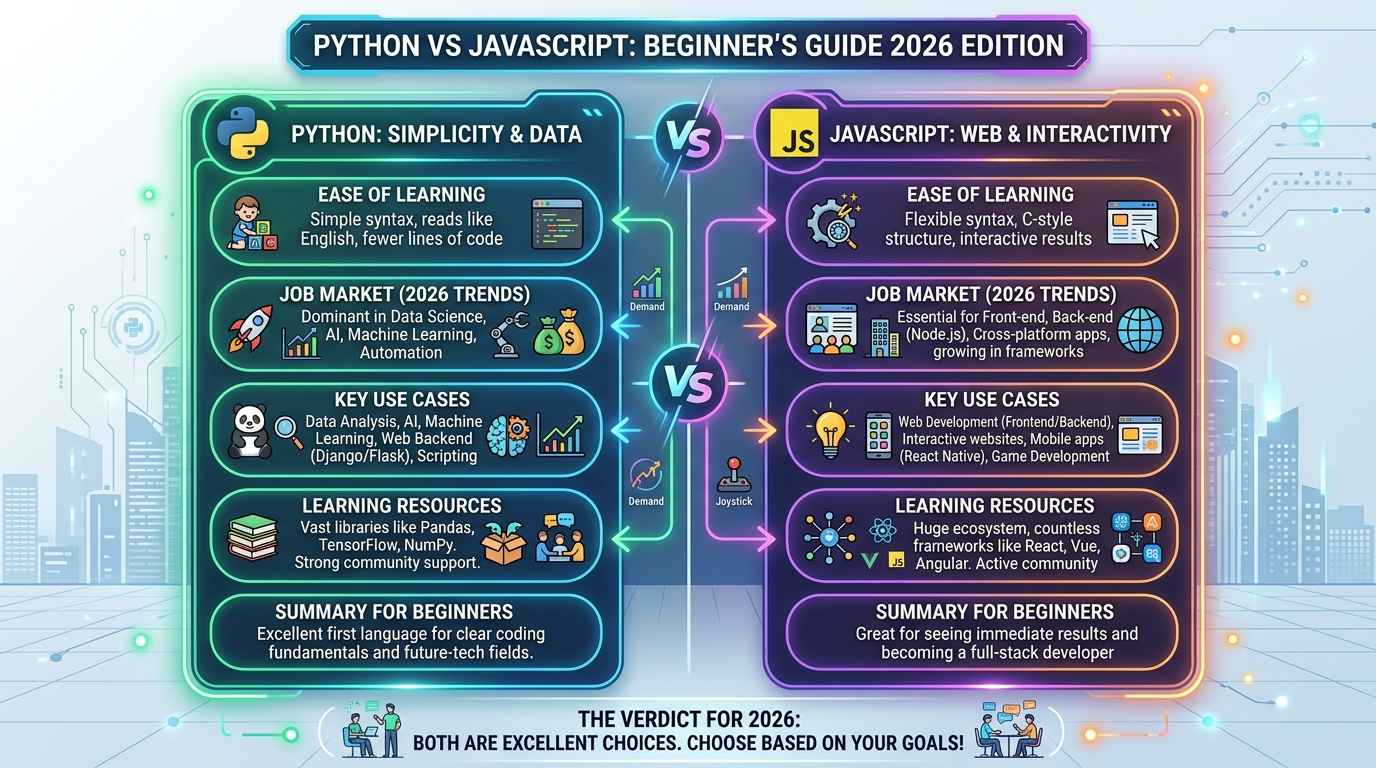
You can also connect this project idea with your learning from Python vs JavaScript 2026 if you are deciding between frontend and backend learning paths.
Project 6: Pricing Table
A pricing table is a small but powerful project. It teaches comparison layout, cards, buttons, spacing, and highlight design.
Pricing tables are used on:
- SaaS websites
- Course websites
- Hosting websites
- AI tool websites
- Membership platforms
Your pricing table should include:
- Plan name
- Price
- Features list
- CTA button
- Highlighted popular plan
Example:
<section class="pricing">
  <div class="price-card">
    <h3>Basic</h3>
    <h2>₹499/month</h2>
    <ul>
      <li>5 Projects</li>
      <li>Email Support</li>
      <li>Basic Analytics</li>
    </ul>
    <button>Choose Plan</button>
  </div>

  <div class="price-card popular">
    <h3>Pro</h3>
    <h2>₹999/month</h2>
    <ul>
      <li>Unlimited Projects</li>
      <li>Priority Support</li>
      <li>Advanced Analytics</li>
    </ul>
    <button>Choose Plan</button>
  </div>
</section>
CSS:
.pricing {
  display: flex;
  gap: 24px;
  justify-content: center;
}

.price-card {
  width: 300px;
  padding: 28px;
  border-radius: 16px;
  border: 1px solid #e5e7eb;
}

.popular {
  transform: scale(1.05);
  border-color: #16a34a;
}
This project improves your understanding of UI balance. The “popular” plan should stand out, but it should not look messy.
On mobile, pricing cards should stack vertically.
Project 7: Responsive Card Layout
Cards are everywhere. Blog cards, product cards, course cards, team cards, pricing cards, service cards, and dashboard cards all use similar layout principles.
A responsive card layout project teaches you how to create reusable components using HTML and CSS.
You can build:
- Course cards
- Product cards
- Team member cards
- Service cards
- Blog cards
- Tool comparison cards
Example:
<section class="cards">
  <div class="card">
    <h3>HTML Basics</h3>
    <p>Learn headings, links, images, lists, and forms.</p>
  </div>

  <div class="card">
    <h3>CSS Flexbox</h3>
    <p>Build clean and flexible layouts for modern websites.</p>
  </div>

  <div class="card">
    <h3>Responsive Design</h3>
    <p>Make your websites work on mobile, tablet, and desktop.</p>
  </div>
</section>
CSS:
.cards {
  display: grid;
  grid-template-columns: repeat(3, 1fr);
  gap: 24px;
}

.card {
  padding: 24px;
  border-radius: 16px;
  background: #f9fafb;
}
Responsive CSS:
@media (max-width: 992px) {
  .cards {
    grid-template-columns: repeat(2, 1fr);
  }
}

@media (max-width: 600px) {
  .cards {
    grid-template-columns: 1fr;
  }
}
This is one of the most useful HTML CSS projects 2026 because card layouts appear in almost every modern website.
Project 8: Documentation Page
A documentation page is a clean, content-heavy project. It is perfect for practicing layout, typography, sticky sidebar, headings, and readable content.
Documentation pages are used by:
- Programming libraries
- APIs
- SaaS tools
- Developer platforms
- Online courses
- Technical blogs
Your documentation page should include:
- Sidebar navigation
- Main content area
- Multiple sections
- Code blocks
- Notes or warning boxes
- Responsive layout
Example:
<div class="docs-layout">
  <aside class="sidebar">
    <a href="#intro">Introduction</a>
    <a href="#setup">Setup</a>
    <a href="#examples">Examples</a>
  </aside>

  <main class="docs-content">
    <section id="intro">
      <h2>Introduction</h2>
      <p>This documentation explains how to use the project.</p>
    </section>
  </main>
</div>
CSS:
.docs-layout {
  display: grid;
  grid-template-columns: 260px 1fr;
  gap: 32px;
}

.sidebar {
  position: sticky;
  top: 20px;
  height: fit-content;
}
Mobile:
@media (max-width: 768px) {
  .docs-layout {
    grid-template-columns: 1fr;
  }

  .sidebar {
    position: static;
  }
}
This project is excellent if you want to improve content structure. It also helps you learn how technical websites organize information.
HTML CSS Projects 2026 Roadmap at a Glance
| Day | Project | Main Skill |
|---|---|---|
| Day 1 | Personal Portfolio | Navbar, hero section, cards |
| Day 2 | Product Landing Page | Sections, CTA, grid layout |
| Day 3 | Restaurant Website | Images, menu cards, typography |
| Day 4 | Login Signup UI | Forms, inputs, buttons |
| Day 5 | Blog Homepage | Post cards, sidebar, layout |
| Day 6 | Pricing Table | Comparison cards, UI hierarchy |
| Day 7 | Responsive Card Layout | CSS Grid, reusable components |
| Day 8 | Documentation Page | Sidebar, code blocks, content layout |
You can complete these projects in 8–15 days depending on your daily practice time. If you are a complete beginner, take your time. Don’t rush.
A good routine:
30 minutes: revise concept
60 minutes: build project
30 minutes: fix responsive design
15 minutes: write what you learned
Tips to Make Your Projects Look Professional
The first tip is to use consistent spacing. Many beginner projects look poor because margins and padding are random. Use spacing like 8px, 16px, 24px, 32px, and 48px.
Second, use only 2–3 colors. Don’t use too many bright colors. Pick one primary color, one dark text color, and one light background color.
Third, use proper font sizes. Your headings should be clearly bigger than paragraphs. Buttons should be easy to click.
Fourth, always check mobile view. A project that looks good only on desktop is not complete.
Fifth, deploy your projects. A live project link looks much more professional than only screenshots.
You can deploy HTML and CSS projects using Netlify, GitHub Pages, or Vercel. For beginners, Netlify is one of the easiest options.
Common Mistakes Beginners Make
The first mistake is copying projects without understanding. If you copy a YouTube project, change the layout, colors, sections, and content. Make it your own.
The second mistake is ignoring semantic HTML. Don’t use only div everywhere. Use header, nav, main, section, article, and footer where appropriate.
The third mistake is not using responsive design. In 2026, most users open websites on mobile. Your website must look good on smaller screens.
The fourth mistake is using large images. Heavy images slow down your page. Compress images and use WebP format when possible.
The fifth mistake is poor alignment. Use Flexbox and Grid properly instead of random margins.
The sixth mistake is not completing projects. Many beginners start 10 projects and finish none. Complete one project fully before starting the next.
How to Add These Projects to Your Portfolio
After building each project, upload the code to GitHub and deploy it live. Then add the project to your portfolio website.
For each project, write:
- Project title
- Short description
- Technologies used
- Live demo link
- GitHub link
- What you learned
Example:
Project: Product Landing Page
Tech Used: HTML, CSS, Flexbox, Grid
Live Demo: your-demo-link
GitHub: your-code-link
What I Learned: Responsive sections, pricing cards, CTA design
This format makes your portfolio look professional. Recruiters and clients can quickly understand your work.
If you want to become a serious developer, your portfolio should not only show project screenshots. It should show live working links.
Final Thought
HTML CSS projects 2026 are your starting point for becoming a confident web developer. You don’t need advanced frameworks on day one. You need strong basics, clean layouts, responsive design, and real practice.
Start with a portfolio website. Then build a landing page, restaurant website, login page, blog homepage, pricing table, card layout, and documentation page. By the time you finish these 8 projects, your HTML and CSS confidence will be much stronger.
Don’t aim for perfect design in the beginning. Aim for completed projects. Once a project is complete, improve the spacing, colors, responsiveness, and code structure.
That is how beginners become real frontend developers.
Frequently Asked Questions
Q1: What are the best HTML CSS projects 2026 for beginners?
The best projects are portfolio website, product landing page, restaurant website, login signup page, blog homepage, pricing table, responsive card layout, and documentation page. These projects cover layout, forms, cards, images, and responsive design.
Q2: Can I get a job by learning only HTML and CSS?
HTML and CSS alone may help with basic internships or simple web design tasks, but for full frontend jobs you should also learn JavaScript, Git, responsive design, and at least one framework like React later.
Q3: How many HTML CSS projects should I build as a beginner?
Build at least 8–10 projects. Focus on quality, responsiveness, and live deployment. A few complete projects are better than many incomplete projects.
Q4: Should I use Bootstrap or Tailwind for these projects?
For the first few projects, use only pure HTML and CSS. After you understand layout properly, you can learn Bootstrap or Tailwind to build faster.
Q5: How do I make my HTML CSS projects responsive?
Use flexible layouts with Flexbox and Grid, avoid fixed widths, use relative units where possible, and add media queries for tablet and mobile screens.
Q6: Where can I host HTML CSS projects for free?
You can host static HTML CSS projects on Netlify, GitHub Pages, or Vercel. Netlify is beginner-friendly and works well for simple projects.
Q7: Are HTML CSS projects good for portfolio?
Yes, HTML CSS projects are good for a beginner portfolio if they are clean, responsive, and deployed live. Add project descriptions and GitHub links to make them more useful.
Q8: What should I learn after HTML and CSS projects?
After completing HTML CSS projects, learn JavaScript basics, DOM manipulation, Git, GitHub, APIs, and then React. This will prepare you for frontend development.

2 comments on “HTML CSS Projects 2026: 8 Best Beginner Projects to Build Your Portfolio”