

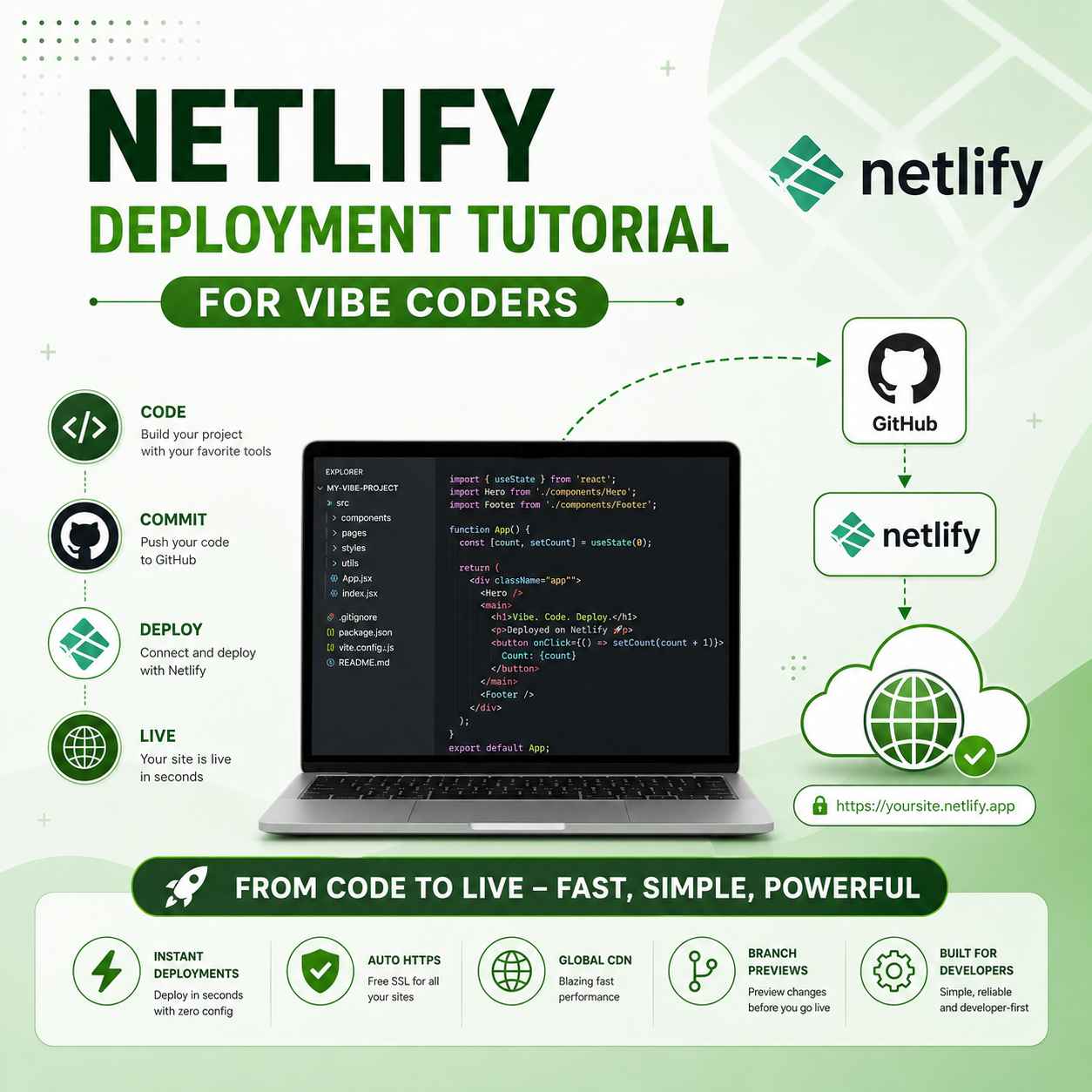
Are you a vibe coder who built an amazing project using ChatGPT, Cursor AI, or GitHub Copilot but have NO idea how to deploy code on Netlify? You’re not alone! As a Full Stack Developer with 6+ years of experience, I’ve helped hundreds of self-taught developers and bootcamp graduates overcome this exact challenge. The good news? There are TWO super easy methods to deploy your code on Netlify — and the simplest one takes just 30 SECONDS!
In this comprehensive guide, we’ll cover how to deploy code on Netlify using both methods — the BEGINNER-FRIENDLY drag-and-drop method for HTML/CSS projects, and the PROFESSIONAL GitHub method for React, Next.js, and complex applications. Whether you have a simple portfolio or a full-stack web app, this tutorial will get your code online quickly. Best of all, Netlify is completely FREE for personal projects!
What is Netlify and Why Should Vibe Coders Use It?
Netlify is one of the world’s most popular hosting platforms specifically designed for modern web applications. Before learning how to deploy code on Netlify, understand why it’s perfect for vibe coders:
- 100% Free Tier: Generous free plan for personal projects
- Zero Configuration: Drag-and-drop or connect GitHub
- Automatic Deploys: Every git push triggers a new deployment
- Free SSL Certificate: HTTPS automatically enabled
- Global CDN: Fast loading worldwide
- Custom Domains: Connect your own domain free
- Preview URLs: Test before going live
- Built-in Forms: No backend needed for contact forms
- Serverless Functions: Backend logic without server
Two Methods to Deploy Code on Netlify – Which One to Choose?
Before diving into how to deploy code on Netlify, understand which method suits your project:
| Method | Best For | Difficulty | Time |
|---|---|---|---|
| Drag-and-Drop | Simple HTML/CSS/JS sites | ⭐ Super Easy | 30 seconds |
| GitHub Integration | React, Next.js, complex apps | ⭐⭐⭐ Medium | 5-10 minutes |
Method 1: Drag-and-Drop Deploy on Netlify (Easiest!)
The absolute EASIEST way to deploy code on Netlify is using the drag-and-drop feature. Perfect for vibe coders who just have HTML, CSS, and JavaScript files and don’t want to deal with GitHub or git commands!
When to Use Drag-and-Drop Method:
- ✅ Simple HTML/CSS/JS websites (no build process)
- ✅ Portfolio websites
- ✅ Landing pages
- ✅ Resume/CV websites
- ✅ ChatGPT-generated simple projects
- ✅ Single-page demos
- ✅ Quick client demos
- ✅ Testing if your code works online
Step-by-Step Drag-and-Drop Deployment
Step 1: Prepare Your Project Folder
Before learning how to deploy code on Netlify via drag-drop, make sure your folder contains:
- index.html (MUST be named this!)
- style.css (or any CSS files)
- script.js (or any JS files)
- images folder (if you have images)
- All other assets your project needs
CRITICAL: Your main file MUST be named “index.html” (lowercase) — Netlify looks for this file first!
Step 2: Open Netlify Drop Page
- Open browser and visit app.netlify.com/drop
- You don’t even need to login first!
- You’ll see a big drop zone area
- Message: “Drag and drop your site output folder here”
Step 3: Drag Your Folder
- Open your project folder on your computer
- Select the ENTIRE folder (not individual files)
- Drag the folder onto the Netlify Drop page
- Release/drop it on the upload area
- Netlify will upload all files automatically
Step 4: Your Site is LIVE!
- Wait 5-30 seconds (depending on folder size)
- You’ll see “Your site is live!” message
- Get your URL: something-random-name.netlify.app
- Click the URL to see your site live!
- Share with anyone — it works on all devices!
Drag-and-Drop Method – Do’s and Don’ts
| Do’s ✅ | Don’ts ❌ |
|---|---|
| Name main file index.html | Don’t drag individual files |
| Drag the FOLDER (not contents) | Don’t use spaces in filenames |
| Test files locally first | Don’t use absolute file paths |
| Use relative paths in code | Don’t forget the index.html file |
| Include all assets in folder | Don’t drag zipped folders |
How to Update Drag-and-Drop Site Later
To update files after first deployment via how to deploy code on Netlify drag-drop method:
- Login to Netlify dashboard
- Click on your site name
- Go to “Deploys” tab
- You’ll see drop zone at bottom
- Drag updated folder there
- New version replaces old one!
Real Example – Deploy ChatGPT-Built Portfolio in 30 Seconds
Let’s say you built a portfolio with ChatGPT:
- You have files: index.html, style.css, profile.jpg
- Put all in folder named “my-portfolio”
- Visit app.netlify.com/drop
- Drag “my-portfolio” folder onto drop zone
- Wait 10 seconds
- Get URL like: amazing-portfolio-12345.netlify.app
- Share with potential employers!
That’s it! Your code is live and accessible globally — without any GitHub, git commands, or build configuration!
Method 2: Deploy on Netlify via GitHub (For React, Next.js, Advanced Projects)
For React apps, Next.js projects, Vue.js sites, or any project requiring a build process, the GitHub method is best. This unlocks the FULL power of how to deploy code on Netlify including automatic deployments on every code change.
Prerequisites Before Deploying via GitHub:
- ✅ A GitHub account (free at github.com)
- ✅ Your project code in a GitHub repository
- ✅ Git installed on your computer
- ✅ Basic knowledge of git commands
- ✅ A working project (tested locally)
Step 1: Create a Free Netlify Account
- Open browser and visit netlify.com
- Click the “Sign up” button (top right corner)
- Choose “Sign up with GitHub” (RECOMMENDED!)
- Authorize Netlify to access your GitHub
- Complete the profile setup
- You’re now logged into Netlify dashboard!
Pro Tip: Sign up with GitHub for automatic repository access — saves time later!
Step 2: Push Your Code to GitHub
Before learning how to deploy code on Netlify via GitHub method, your code MUST be on GitHub. Here’s the complete process:
Create New Repository:
- Visit github.com and log in
- Click the “+” icon (top right) → “New repository”
- Enter repository name (e.g., “my-portfolio”)
- Choose Public or Private
- DON’T check “Initialize with README”
- Click “Create repository”
Push Your Code:
Open terminal in your project folder and run:
git init
git add .
git commit -m "Initial commit"
git branch -M main
git remote add origin https://github.com/YOUR-USERNAME/YOUR-REPO-NAME.git
git push -u origin main
Replace YOUR-USERNAME and YOUR-REPO-NAME with your actual details. Your code is now on GitHub!
Step 3: Connect GitHub Repository to Netlify
Now the magic part of how to deploy code on Netlify:
- Go to Netlify dashboard (app.netlify.com)
- Click “Add new site” button
- Select “Import an existing project”
- Choose “Deploy with GitHub”
- Authorize Netlify (if not already done)
- Select your repository from the list
- You’ll see deployment configuration page
Step 4: Configure Build Settings
This is the most important step. Settings vary by project type:
For React Projects (Create React App):
| Setting | Value |
|---|---|
| Branch to deploy | main |
| Build command | npm run build |
| Publish directory | build |
For Next.js Projects:
| Setting | Value |
|---|---|
| Build command | npm run build |
| Publish directory | .next (or out for static export) |
For Vite Projects (React + Vite):
| Setting | Value |
|---|---|
| Build command | npm run build |
| Publish directory | dist |
For Vue.js Projects:
| Setting | Value |
|---|---|
| Build command | npm run build |
| Publish directory | dist |
Step 5: Add Environment Variables (If Needed)
If your code uses API keys, configure them BEFORE deploying:
- Scroll down to “Environment variables” section
- Click “Add a variable”
- Enter Key (e.g., REACT_APP_API_KEY)
- Enter Value (your actual API key)
- Add all required variables
- NEVER commit API keys to GitHub!
Common Environment Variable Prefixes:
- REACT_APP_* — For Create React App
- VITE_* — For Vite projects
- NEXT_PUBLIC_* — For Next.js public variables
- VUE_APP_* — For Vue projects
Step 6: Deploy Your Site!
Final step in how to deploy code on Netlify via GitHub:
- Review all settings one final time
- Click the “Deploy site” button at bottom
- Netlify will start building your site
- Watch the build logs (top of page)
- Wait 1-3 minutes (depending on project size)
- You’ll see “Site is live” message!
- Your URL: random-name-12345.netlify.app
Congratulations! Your code is LIVE on the internet!
Customize Your Netlify URL
That random URL looks unprofessional. Here’s how to fix it:
Change to Custom Subdomain:
- In Netlify dashboard, go to your site
- Click “Domain settings”
- Click “Options” next to your current subdomain
- Click “Edit site name”
- Enter your desired name (e.g., “my-portfolio”)
- New URL: my-portfolio.netlify.app
Connect Custom Domain (Pro Move!):
- Buy domain from Namecheap, GoDaddy, or Hostinger
- In Netlify, click “Add custom domain”
- Enter your domain name
- Update DNS settings in your domain registrar
- Wait 24-48 hours for DNS propagation
- Free SSL automatically activates
Enable Continuous Deployment (GitHub Method Only)
The BEST feature of GitHub method for how to deploy code on Netlify — automatic deployments!
Once connected, every time you push code to GitHub:
- Netlify detects the change
- Automatically builds new version
- Deploys updated site
- You get email confirmation
- Old version preserved (rollback possible)
Just push code with: git push origin main — that’s it!
Common Errors and Quick Fixes
Error 1: “Build Failed – Command Failed”
Reason: Wrong build command
Fix: Check package.json scripts. Verify “npm run build” works locally first.
Error 2: “Page Not Found” After Deploy
Reason: Wrong publish directory
Fix: Check the build output folder (build, dist, .next, out, etc.)
Error 3: “404 Error on Refresh” (React/Vue Router)
Reason: Single Page App routing issue
Fix: Create a “_redirects” file in public folder with:
/* /index.html 200
Error 4: “Module Not Found”
Reason: Dependencies missing
Fix: Run “npm install” locally, commit package.json, push to GitHub.
Error 5: “Environment Variable Undefined”
Reason: Variables not set in Netlify
Fix: Add variables in Site Settings → Environment Variables.
Error 6: Drag-Drop Site Shows Blank Page
Reason: No index.html in folder root
Fix: Rename main file to index.html and re-deploy.
Netlify Free Tier Limits (What Vibe Coders Get)
| Feature | Free Limit |
|---|---|
| Bandwidth | 100 GB/month |
| Build Minutes | 300 minutes/month |
| Sites | Unlimited |
| Form Submissions | 100/month |
| Serverless Functions | 125,000 requests/month |
| SSL Certificate | Free (auto) |
| Custom Domains | Unlimited |
This is MORE than enough for most personal projects and small businesses!
Drag-and-Drop vs GitHub Method – Detailed Comparison
| Feature | Drag-and-Drop | GitHub Method |
|---|---|---|
| Difficulty | ⭐ Super Easy | ⭐⭐⭐ Medium |
| Time Required | 30 seconds | 5-10 minutes |
| Best For | Simple HTML sites | React, Next.js, Vue.js |
| Account Required | No (for first deploy) | Yes |
| Auto-deploy on Code Change | No (manual) | Yes (automatic) |
| Version History | Limited | Full git history |
| Build Process | No build | Auto build |
| Preview URLs | No | Yes (per branch) |
| Team Collaboration | Limited | Excellent |
Pro Tips – Deploy Code on Netlify Like an Expert
- Test Locally First: Run “npm run build” locally before deploying
- Use .gitignore: Never commit node_modules folder
- Set Build Cache: Speeds up future deployments
- Enable Deploy Notifications: Get email on successful/failed deploys
- Use Branch Deploys: Test features before merging to main
- Add netlify.toml: Configure builds programmatically
- Compress Images: Use TinyPNG before deploying
- Start with Drag-Drop: Learn basics, then move to GitHub method
- Use Deploy Previews: Test PRs before merging
- Monitor Build Times: Optimize slow builds
Netlify vs Vercel vs GitHub Pages – Which is Best?
| Feature | Netlify | Vercel | GitHub Pages |
|---|---|---|---|
| Best For | All types | Next.js apps | Static sites only |
| Drag-Drop Support | ✅ Yes | ❌ No | ❌ No |
| Free Tier | Generous | Generous | Free |
| Build Minutes | 300/mo | 6000/mo | Unlimited |
| Custom Domain | Free | Free | Free |
| Serverless | Yes | Yes | No |
| Forms | Built-in | External | External |
| Ease of Use | ⭐⭐⭐⭐⭐ | ⭐⭐⭐⭐⭐ | ⭐⭐⭐ |
Which Project Type to Use Which Method?
| Project Type | Recommended Method |
|---|---|
| Static HTML/CSS Portfolio | Drag-and-Drop |
| Landing Page | Drag-and-Drop |
| Resume Website | Drag-and-Drop |
| ChatGPT-Built Simple Site | Drag-and-Drop |
| React Application | GitHub Method |
| Next.js Project | GitHub Method |
| Vue.js Application | GitHub Method |
| Static Blog (Gatsby/Hugo) | GitHub Method |
| Production Business Site | GitHub Method |
My Personal Deployment Workflow (From 6+ Years Experience)
Here’s exactly how I deploy projects in production:
- Local Development: Build and test on localhost
- Test Production Build: Run “npm run build” + serve locally
- Push to GitHub: Always to a feature branch first
- Create Pull Request: Netlify auto-creates preview URL
- Test Preview: Share with team/clients
- Merge to Main: Auto-deploys to production
- Monitor Logs: Watch for errors first 10 minutes
- Lighthouse Audit: Performance check
For quick demos or simple sites, I still use the drag-and-drop method — it’s just THAT convenient!
Common Mistakes Vibe Coders Make While Deploying
- ❌ Pushing node_modules to GitHub (use .gitignore!)
- ❌ Hardcoding API keys in code
- ❌ Not testing build locally first
- ❌ Wrong publish directory configuration
- ❌ Missing _redirects file for SPAs
- ❌ Not setting environment variables
- ❌ Using GitHub method for simple HTML (overkill!)
- ❌ Forgetting to name file index.html
- ❌ Dragging individual files instead of folder
- ❌ Not monitoring build minutes usage
How to Choose Between Two Methods – Quick Decision Guide
Choose Drag-and-Drop If:
- ✅ You have simple HTML, CSS, JS files
- ✅ No build process needed
- ✅ You want fastest deployment (30 seconds)
- ✅ You’re new to coding/deployment
- ✅ It’s a quick demo or test
- ✅ You don’t know git/GitHub
Choose GitHub Method If:
- ✅ You’re using React, Next.js, Vue.js
- ✅ Your project has package.json
- ✅ You want automatic deployments
- ✅ You need version control
- ✅ Team collaboration is needed
- ✅ It’s a production website
Also Read – More Web Development Articles
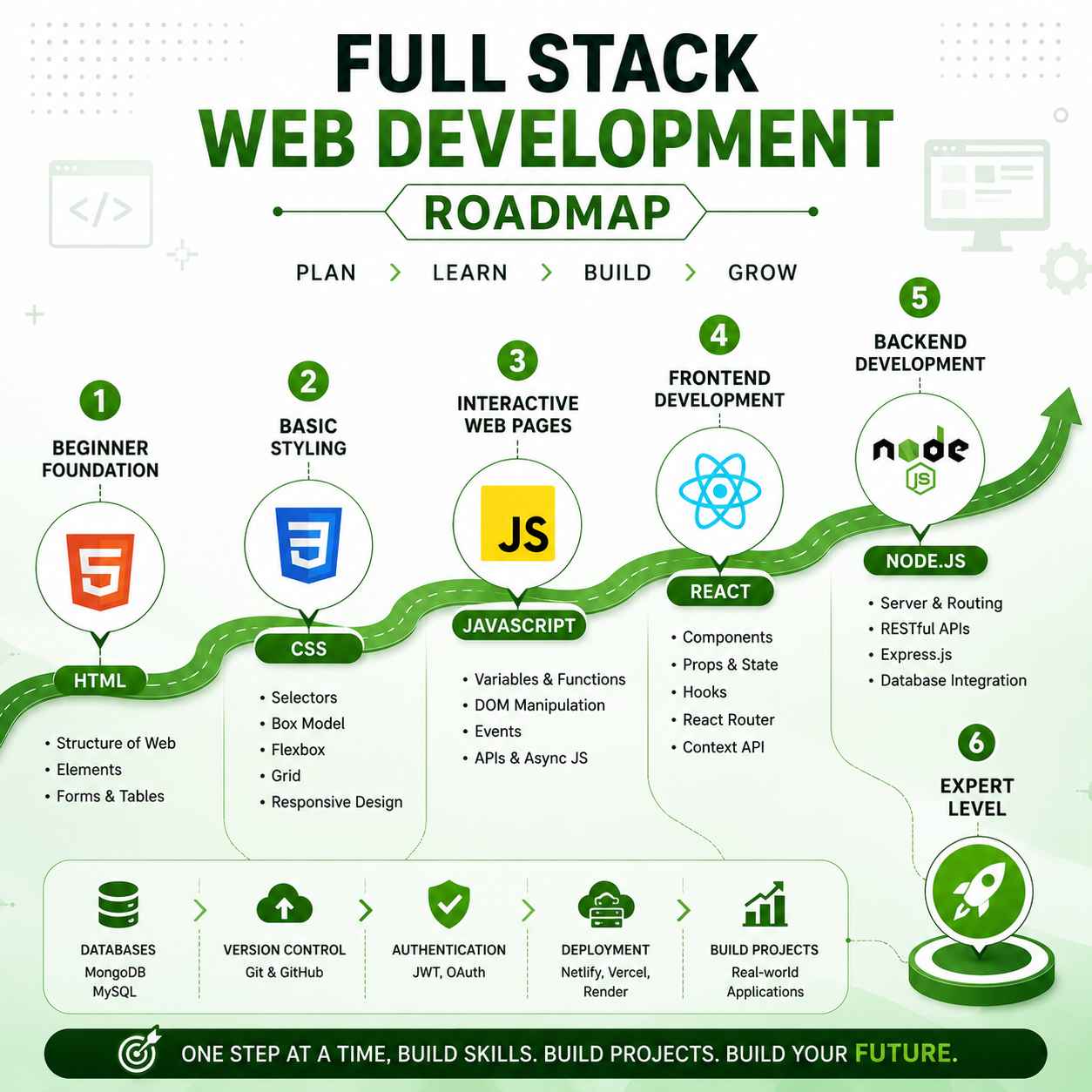
- 📖 Full Stack Web Development Roadmap 2026
- 📖 Which Language is Best for Software Engineer 2026
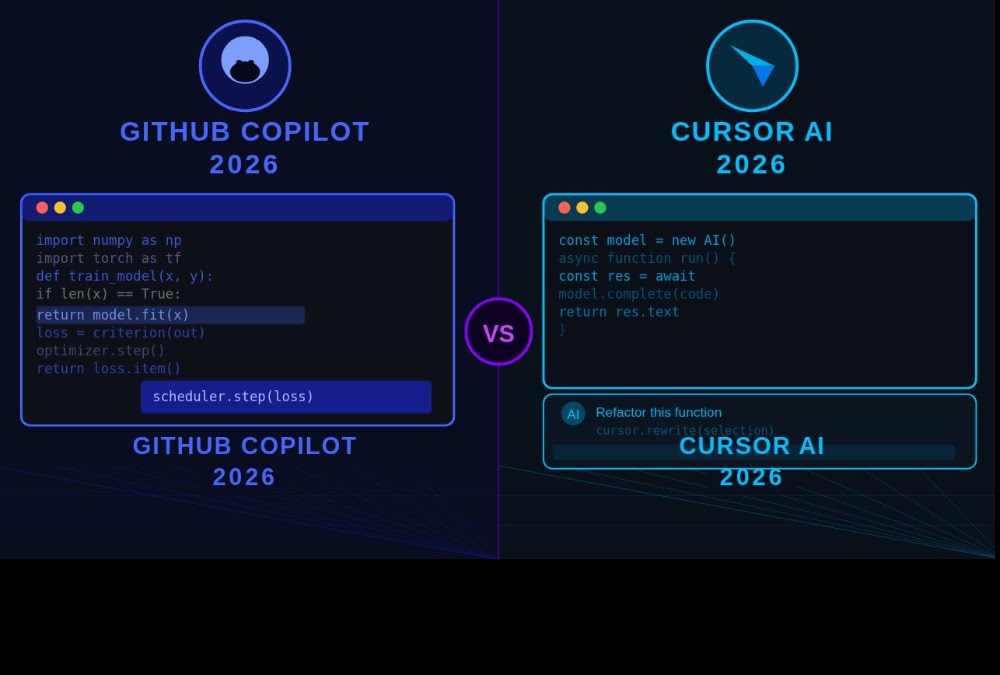
- 📖 GitHub Copilot vs Cursor AI Comparison
- 📖 Python vs JavaScript 2026 Guide
- 📖 Top 10 Best AI Tools 2026
Final Thoughts on How to Deploy Code on Netlify
Learning how to deploy code on Netlify is one of the most empowering skills you can master as a developer in 2026. Whether you choose the lightning-fast drag-and-drop method for simple HTML projects or the powerful GitHub integration for advanced applications, Netlify removes ALL the complexity from deployment. Within 30 seconds to 10 minutes, your code can go from localhost to a global audience — completely free!
For vibe coders just starting out, I strongly recommend beginning with the drag-and-drop method. It builds confidence, shows immediate results, and lets you focus on coding rather than DevOps. Once you graduate to React or Next.js projects, you can easily switch to the GitHub method for professional workflow with automatic deployments. The key takeaway? Stop letting deployment fear hold you back. Take that simple HTML site, that ChatGPT-generated portfolio, or that React app, and deploy it RIGHT NOW using this guide!
Ready to deploy your first project? Bookmark CodeLearning.in for daily web development tutorials, deployment guides, AI tools tutorials, and career tips. Drop your Netlify URL in the comments — I’ll personally review your project and provide feedback! Our team responds within 24 hours. 🚀💻
Disclaimer: Netlify features, free tier limits, and pricing may change over time. The deployment processes described are accurate as of 2026 based on my professional experience. Always refer to the official Netlify documentation at docs.netlify.com for the most current information and advanced features.




2 comments on “How to Deploy Code on Netlify 2026 — Complete Free Guide for Vibe Coders”